


A mandate is a payment mechanism that automatically makes payments for your SIPs from your bank account.
To create a new mandate on the Coin app:
- Tap on Account.
-
Tap on
Mandates.
- Tap on Create mandate.
-
Enter the name of the mandate, select the method and tap on
Proceed.
-
If you have selected UPI, tap on
Confirm Autopay and Pay ₹1
and enter your UPI PIN.
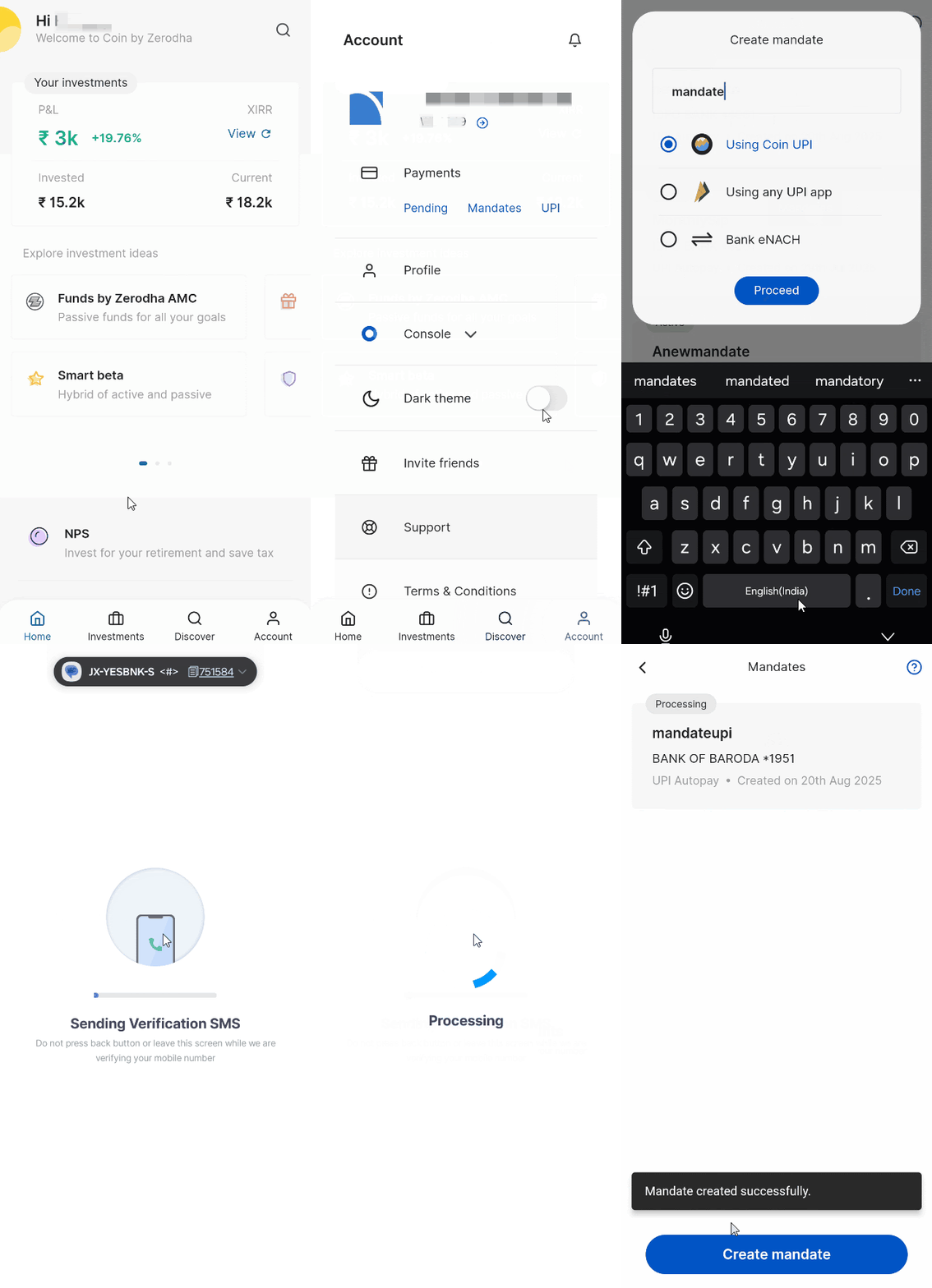
The UPI autopay is set up immediately unlike regular bank mandates that can take upto 72 working hours. Once the UPI autopay request is authorised on the UPI app, ₹1 is debited from the bank account and will be credited back in T+4 working days.
If you've selected Bank e NACH, your mandate will be successfully registered and activated within 3 days. You can check the mandate status by tapping on Mandates, where pending and active mandates will be displayed.
To create a new mandate on Coin web:
- Login to Coin.
- Click on Mandates.
- Click on Create a Mandate.
- Enter a mandate name if you wish to.
- Enter the UPI ID and accept the terms and conditions.
- Click on Continue.
-
Accept the mandate authorisation request on the UPI app.
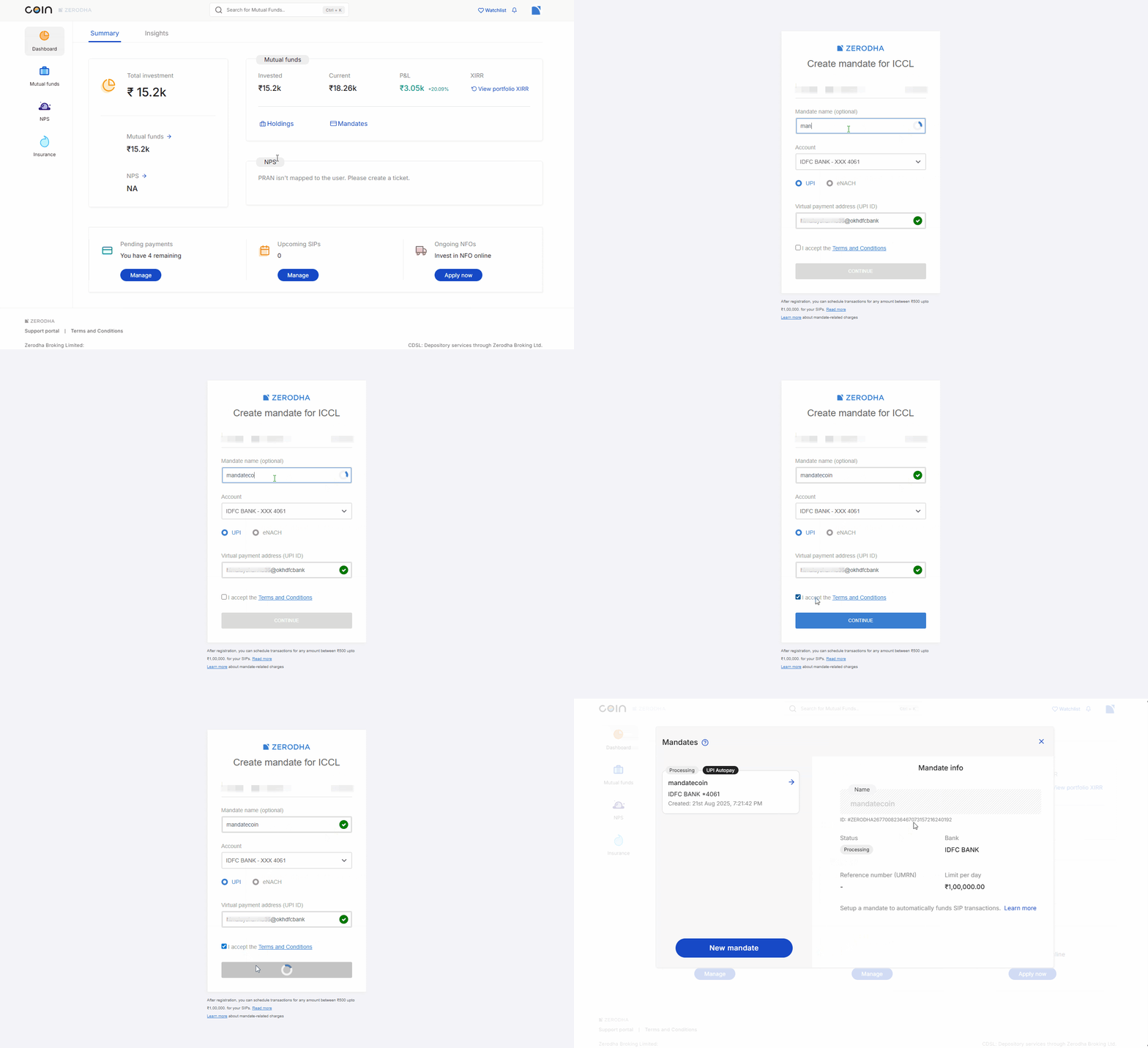
The UPI autopay is set up immediately unlike regular bank mandates that can take upto 72 working hours. Once the UPI autopay request is authorised on the UPI app, ₹1 is debited from the bank account and will be credited back in T+4 working days.
If you've selected Bank e NACH, your mandate will be successfully registered and activated within 3 days. You can check the mandate status by tapping on Mandates, where pending and active mandates will be displayed.
Linking a mandate to a new SIP
On Coin app
- Select the fund and tap on Buy.
- From the dropdown under Mandates, select your mandate.
- Enter the amount, frequency, and tap on Create SIP and then on Create.
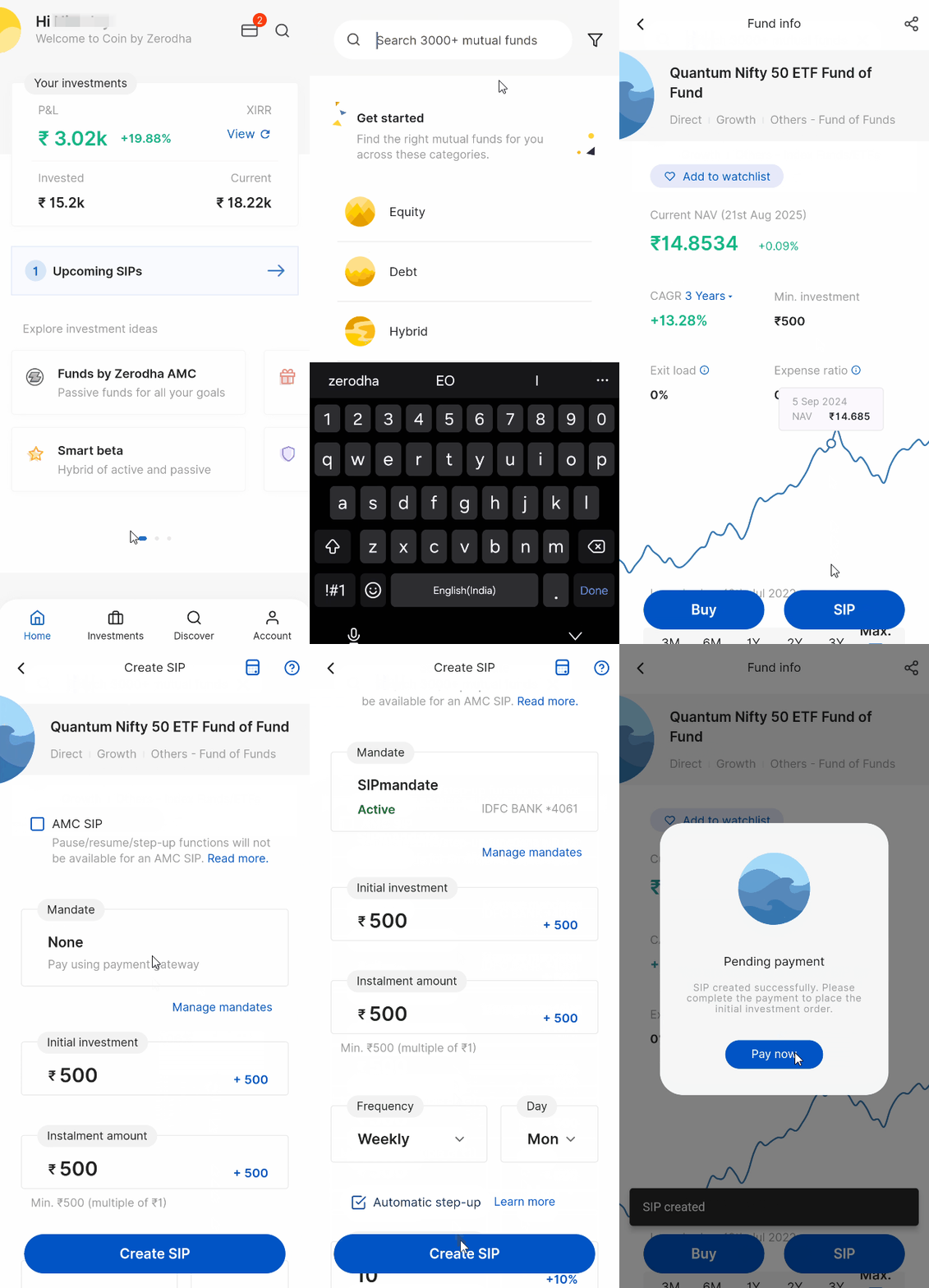
On Coin web
- Select the fund and click on SIP.
- From the dropdown under Mandates, select your mandate.
-
Enter the amount, frequency, and click on
Create SIP,
and then on
Confirm.
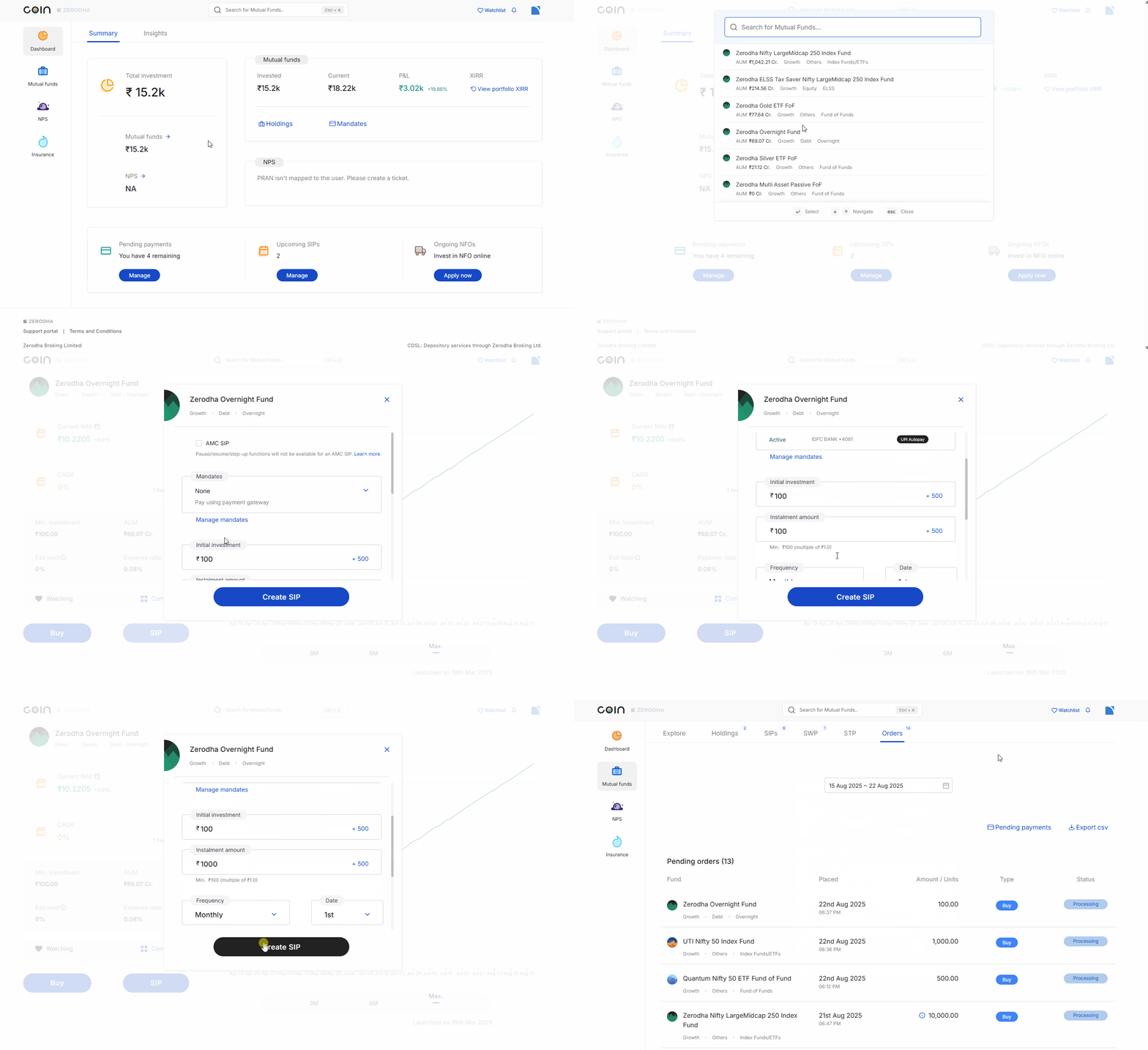
Linking a mandate to an existing SIP
On Coin app
- Tap on Investments.
- Tap on SIPs.
- Select the SIP and tap on Modify.
- Tap on Mandate and select your mandate from the dropdown.
- Tap on Modify and then again on Modify.
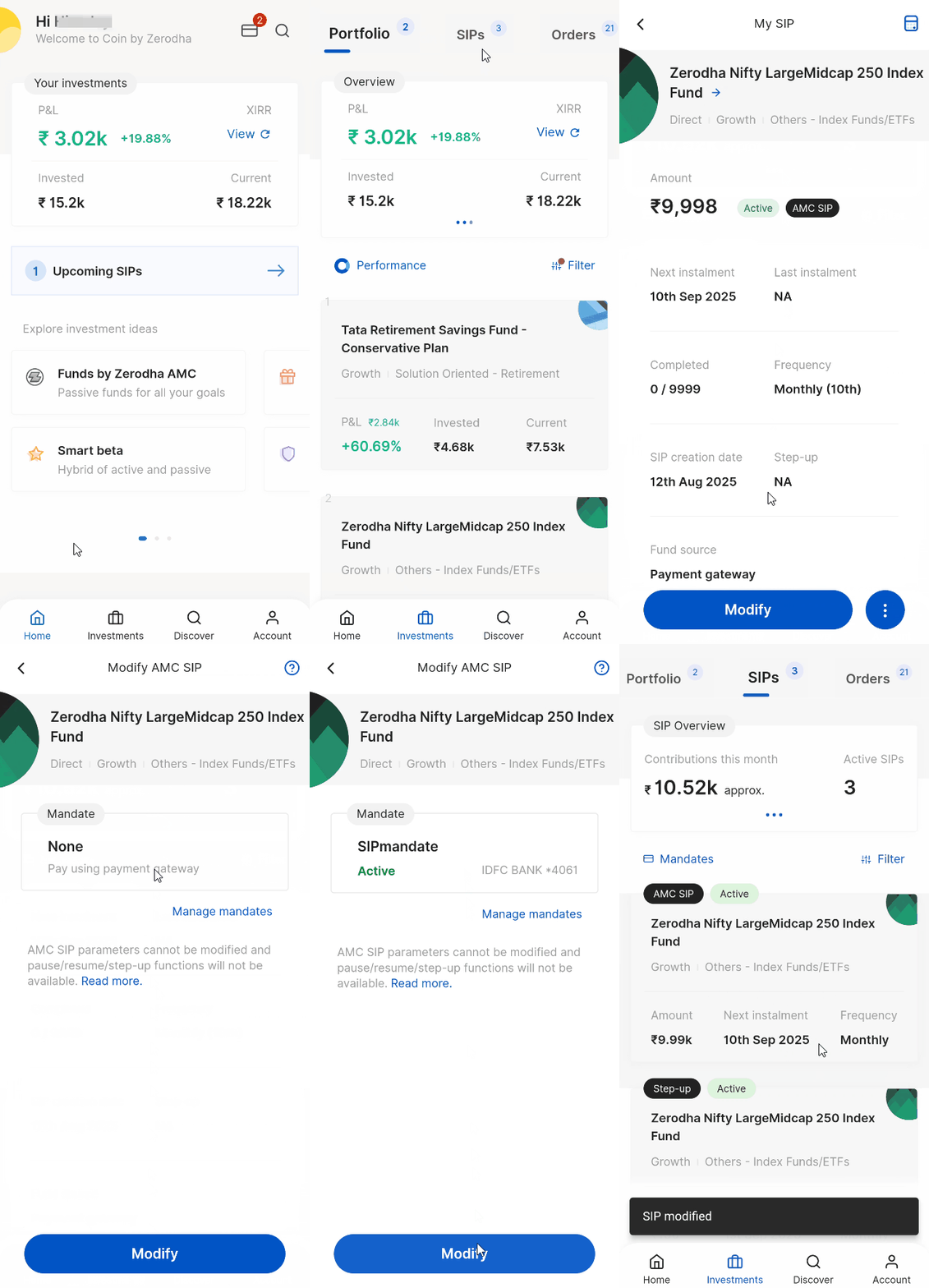
On Coin web
- Click on SIPs.
-
Click on
Options
and then on
Modify.
- Click on the dropdown under Mandates and select your mandate.
- Click on Modify SIP and then on Confirm.
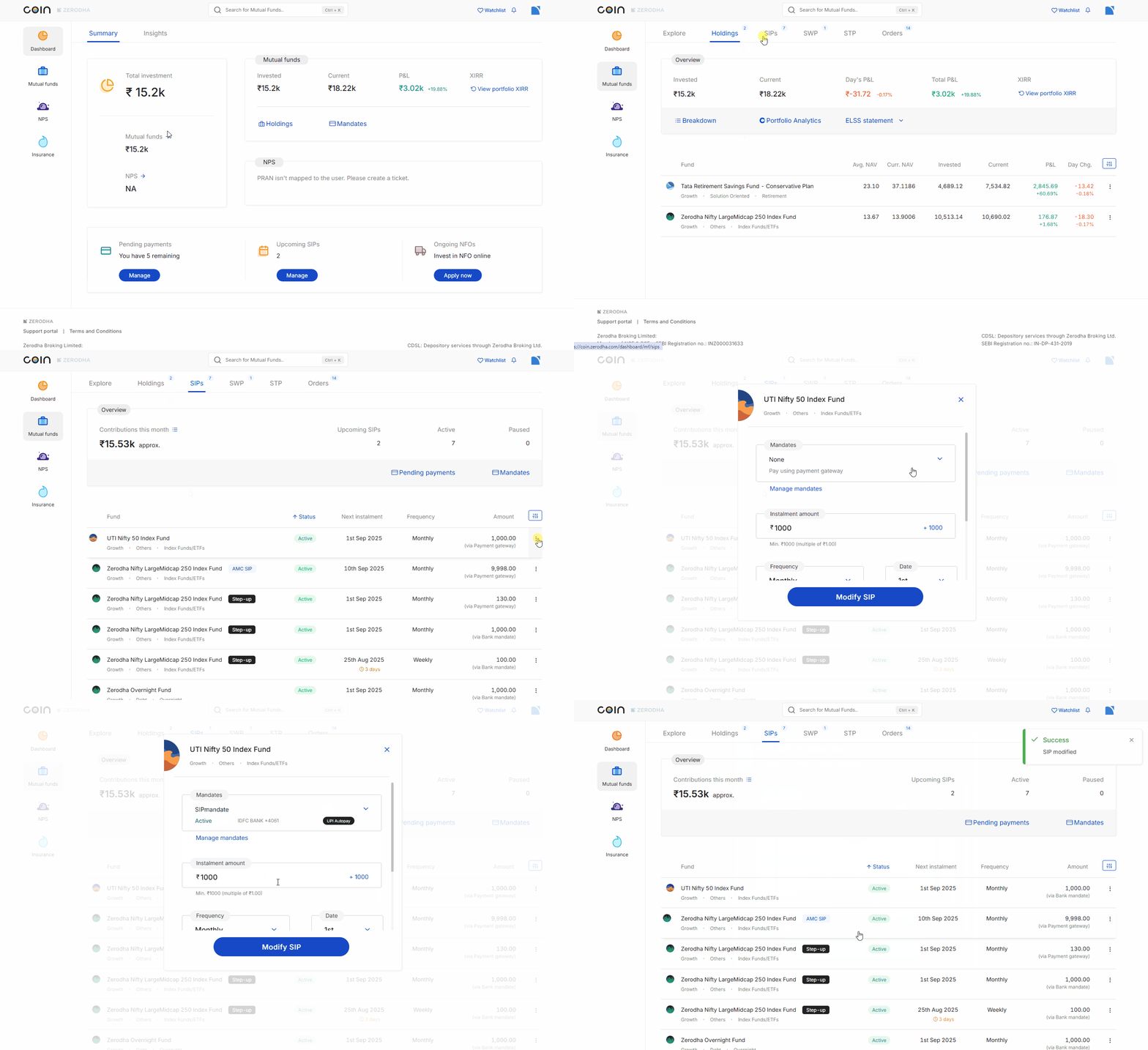
You can unlink the mandate from the SIP by following the same steps and selecting None in the mandates section.
How mandates work
On T day, the amount will be debited from your bank account and credited to BSECL's bank account once your mandate is active. BSECL is the clearing corporation of BSE Star MF, and all mutual fund orders are processed through BSE Star MF.
If the auto-debit fails, your order will remain in processing until T+5 business days, after which it will be marked as failed unless you cancel it before then.
Zerodha does not charge for setting up mandates, but your bank may apply charges. You can rename, modify, or delete active mandates. Pending mandates are automatically deleted if registration is unsuccessful.
Things to keep in mind
- You cannot link mandates if the SIP due date is on T+2 day
- Maximum daily limit for eNACH mandates is ₹1 crore per day
- You can create mandates using primary and secondary bank accounts
- Current bank accounts cannot be used to create mandates
- You cannot modify or delete a SIP linked to a mandate two days prior to the next instalment date
- A single SIP cannot be linked to multiple mandates, but multiple SIPs can be linked to a single mandate
- SIPs will not be retried if mandate payment fails
- NRI clients can register mandates from their NRO savings account if they hold a non-PIS demat account.
- Banks may levy penalties if mandate transactions fail due to insufficient balance
- You cannot create mandates using cheques or physical mandate forms
- If you change your bank account, the existing mandate will not carry over. You'll need to create a new mandate with the new bank and link it to your existing SIP(s).
- Non-individual account holders (except HUF) cannot set up mandates and are limited to NEFT or RTGS for payments. As a result, they cannot set up STPs.
- To ensure your SIP starts within the current month, you must set it up at least 2 days prior to your preferred execution date. For example, if you want your SIP to execute on the 5th of each month, you need to set it up on or before the 2nd of the current month. If you set up the SIP on the 3rd with an execution date of the 5th, it will start from the next month