


You can now organise your positions on Kite web using grouping and filtering options. This helps you track positions and P&L more easily when you have multiple positions across different instruments and expiries.
By default, all your positions are displayed in a single list with the combined P&L at the bottom. You can customise this view by clicking on Settings in the Positions section on Kite.
Grouping positions
You can group your positions in two ways:
Group by underlying
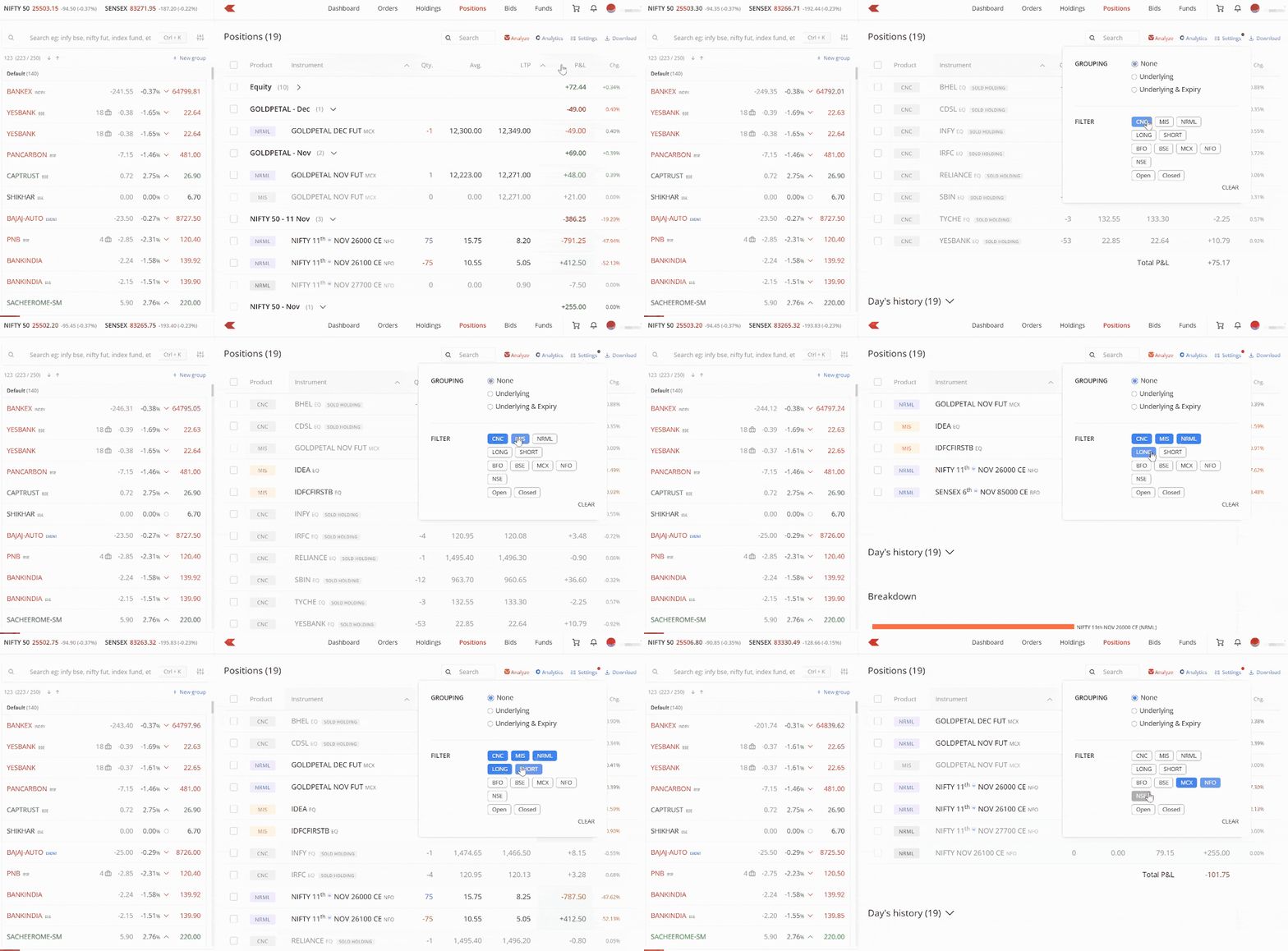
In the Positions section, click on Settings and select Underlying to group all positions for the same instrument, regardless of their expiry dates.
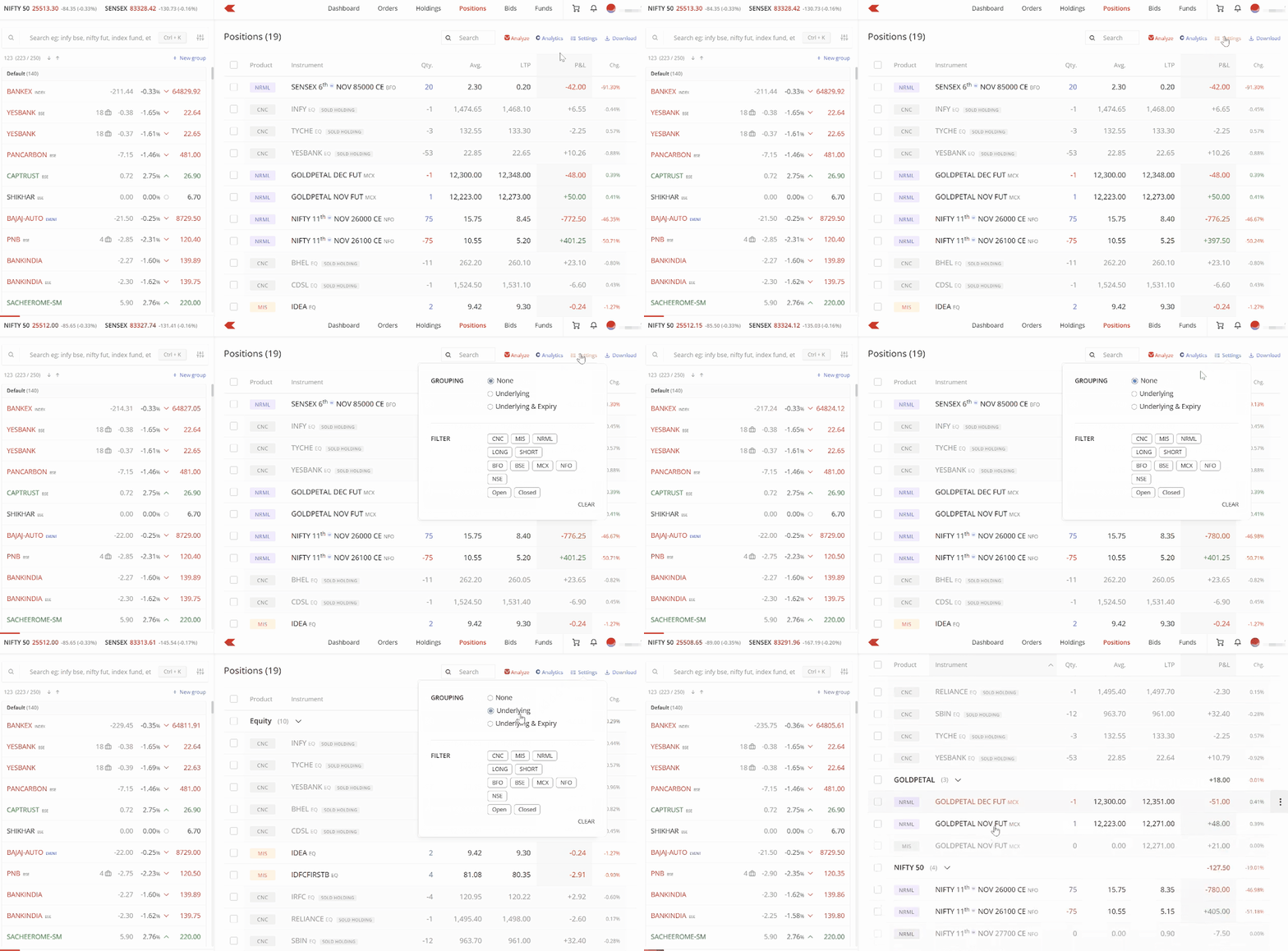
Example: If you have taken positions in multiple Nifty contracts (current month, next month, and far month), they all appear under a single Nifty 50 group. Similarly, all your Sensex contracts are grouped under Sensex. Each group shows the combined P&L for all positions within it.
This view helps you see your overall exposure and P&L for each underlying instrument at a glance.
Group by underlying and expiry
Select Underlying & Expiry to create separate groups for each expiry date within an instrument.
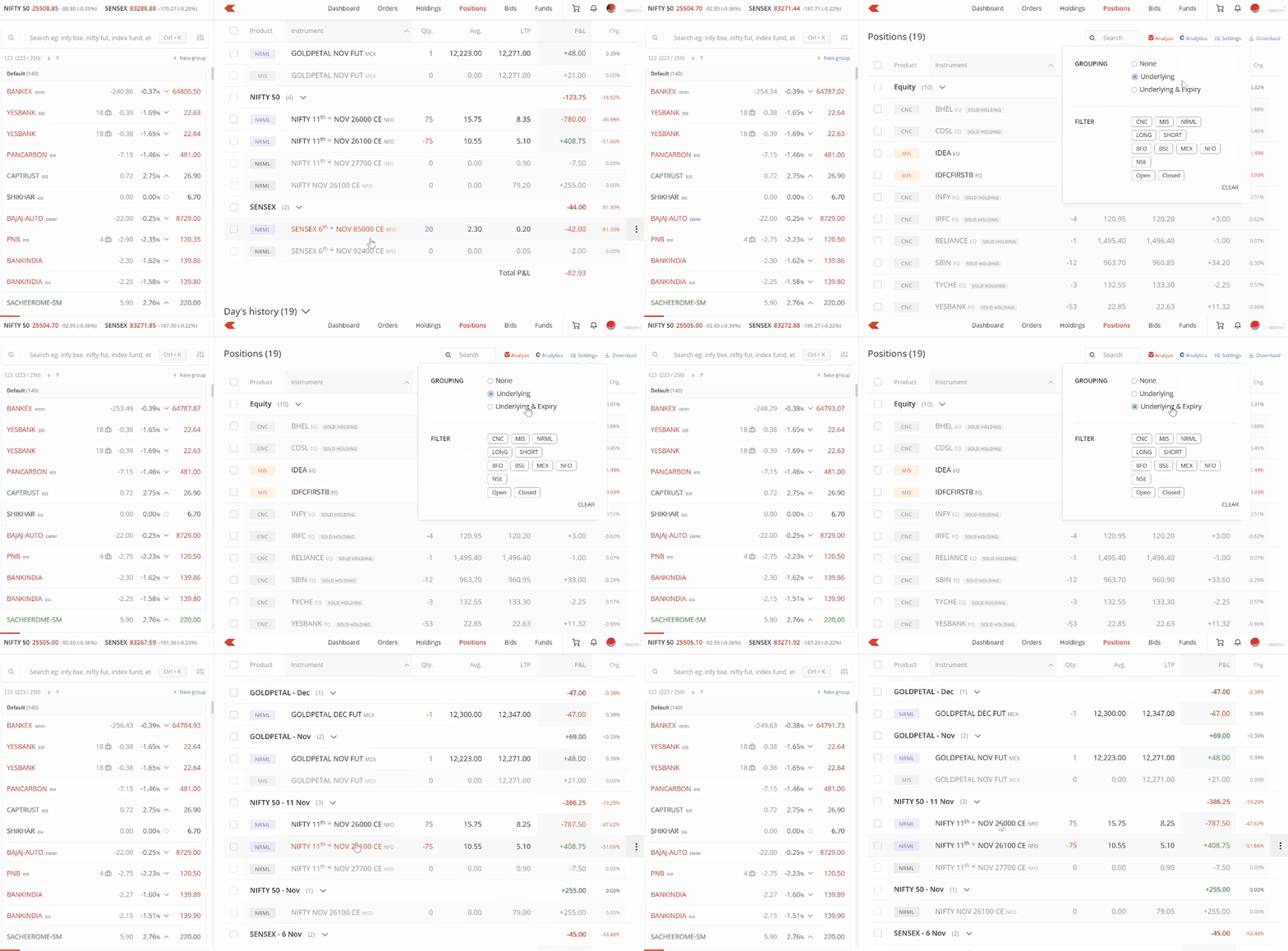
Example: If you trade Nifty contracts across three different expiries, you will see three separate groups:
- Nifty 50 - November 2025
- Nifty 50 - December 2025
- Nifty 50 - January 2026
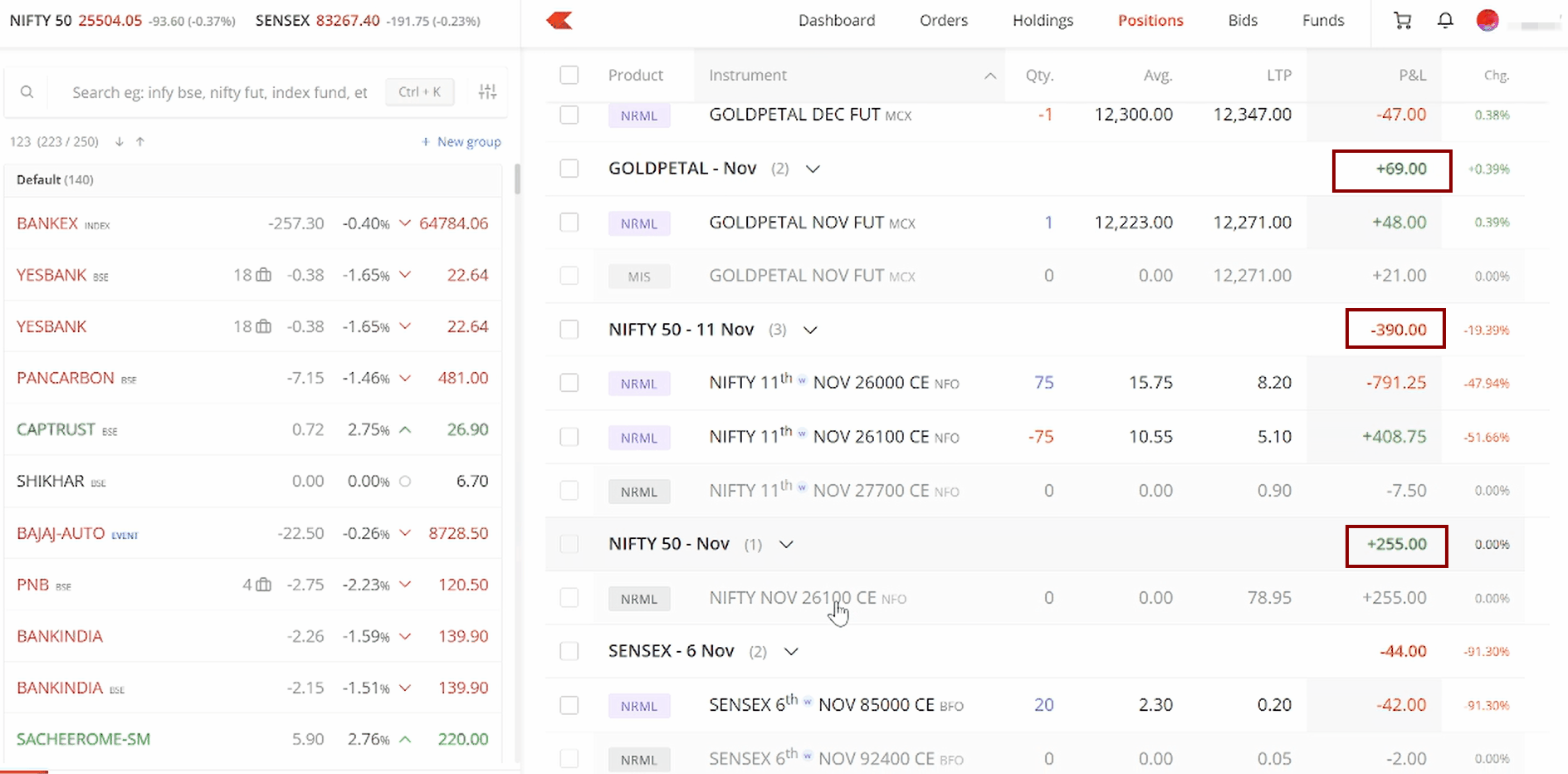
Each group displays its own combined P&L, making it easier to track performance across different expiries.
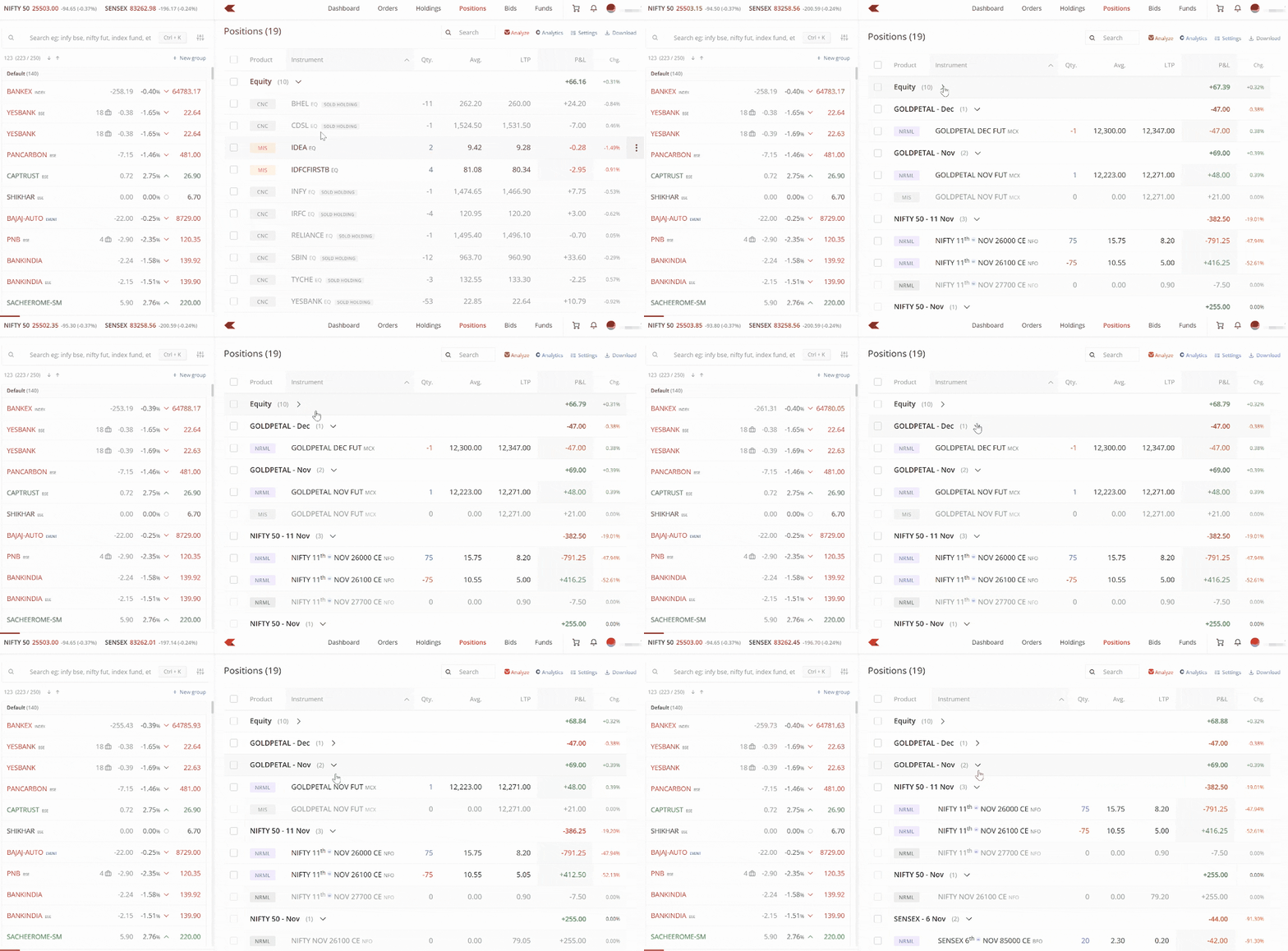
You can collapse or expand any group to focus only on the positions you want to monitor.
Filtering positions
You can apply filters to narrow down your view further. Kite allows you to filter positions by:
- Segment
- Product type
- Status (open, closed, long, short, or overnight)
When you apply a filter, the P&L displays only for those filtered positions. A small red dot appears next to the settings icon whenever a filter is active, indicating that you have customised the view.
Saving preferences
Your preferences are saved and your settings reset only when you:
- Switch accounts
- Use incognito mode
- Log in from a different browser
The applied filter will be reset the next day. However, grouping will be remembered.