


A static Internet Protocol (IP) address is a fixed address assigned to your internet connection that never changes. You typically obtain a static IP from internet service providers (ISPs), cloud, or Virtual Private Server (VPS) providers. A dynamic IP, by contrast, is temporary and changes every time you connect to the internet.
As per regulations, effective 1 April 2026, you must have a static IP for API-based order placement. This requirement applies to all API-based order placement as per NSE/ SEBI algorithmic trading regulations. The WebSocket market data stream and other APIs, such as orderbook and positions, can continue to be accessed from any IP address.
How to add a static IP to your developer account
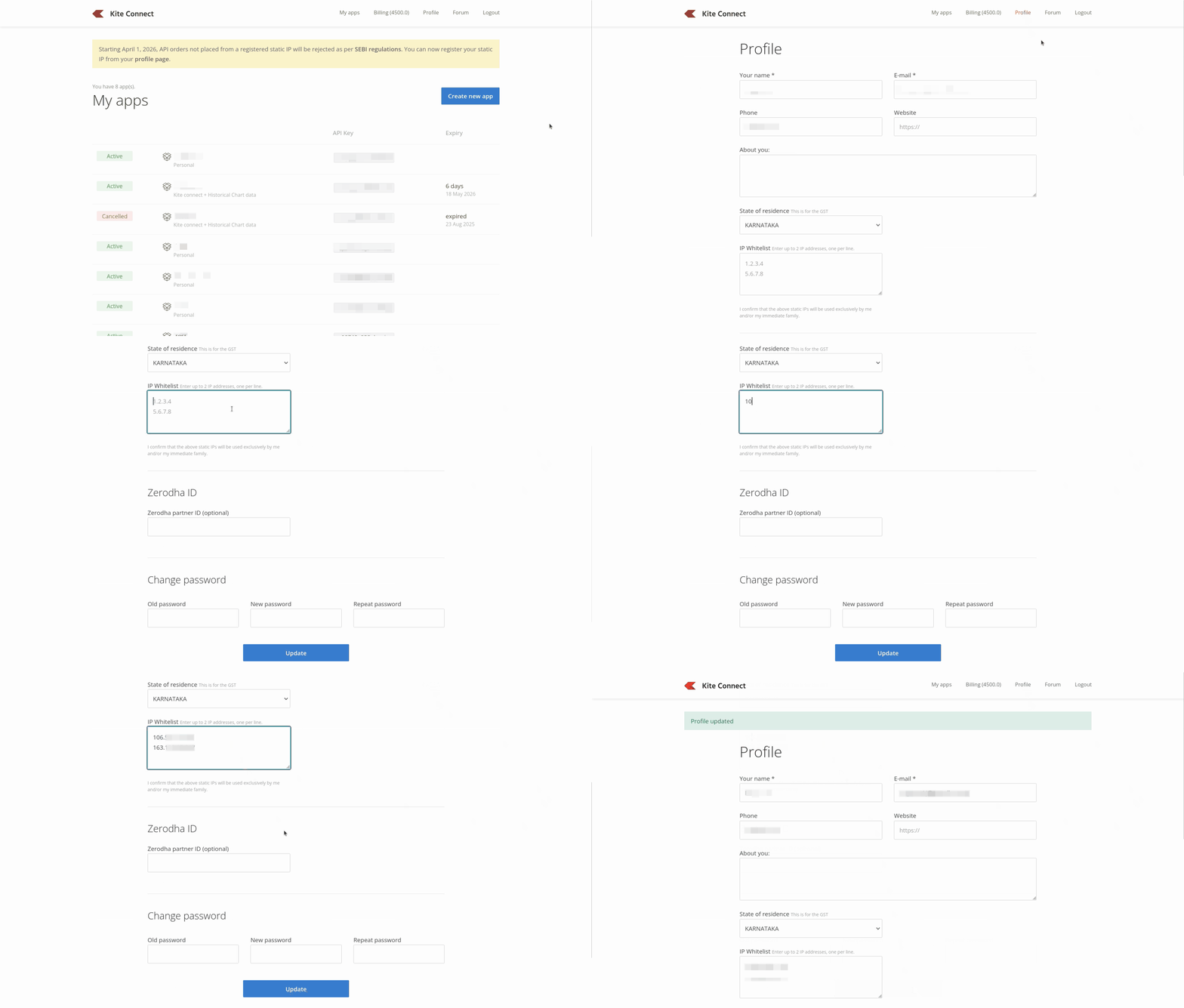
To add a static IP, log in to your Kite Connect developer account and follow these steps:
- Navigate to the Profile section in the top-right corner.
- Under IP Whitelist, enter your static IP address.
- Click on Update to whitelist the IP. Verify the IP address carefully before saving. Exchange rules allow just one modification per calendar week.
How to use the same static IP for multiple family accounts in Kite Connect
You can use the same static IP address for your family accounts (spouse, dependent children, and dependent parents) through a single developer account.
To set this up:
- Use a single developer account for all family members.
- Create separate apps under that account.
- Add all relevant client IDs (yours and your family members') to each app.
- During IP whitelisting, read and confirm the declaration: I confirm that the above static IPs will be used exclusively by me and/or my immediate family.
Once you complete these steps, all family accounts can share the same static IP without any issues.
Things to keep in mind
- You must add at least one primary IP.
- You can add up to two IPs, one per line.
-
Adding a secondary IP is optional.