


Kite terminal mode is a customisable workspace within Kite that lets you choose your layout, add the widgets you need, and arrange them however you prefer, so you can trade without constantly switching tabs or scrolling.
How to access terminal mode
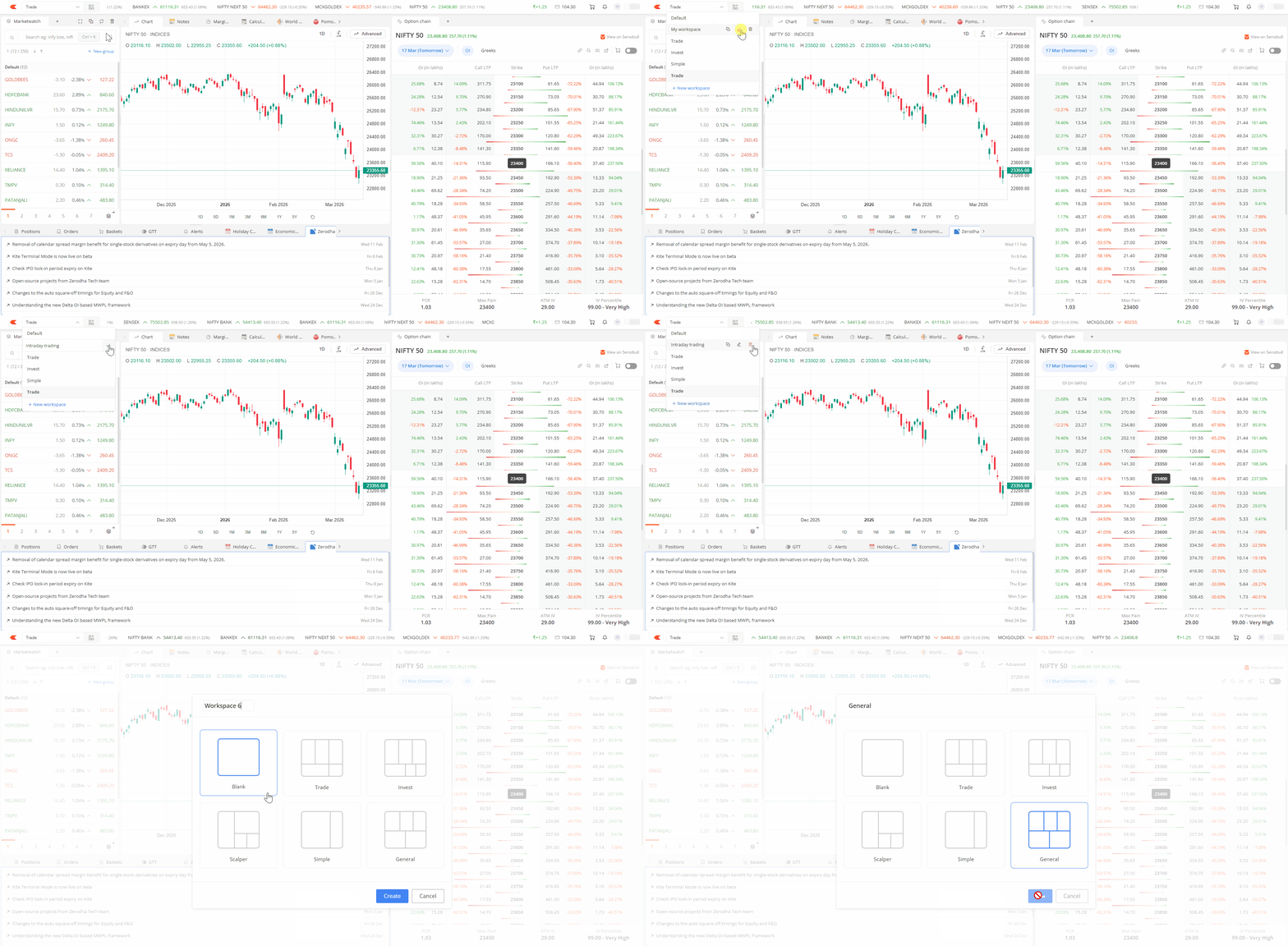
To open terminal mode, click on the terminal icon in Kite, then click on Create workspace. You will see six layout options to choose from.
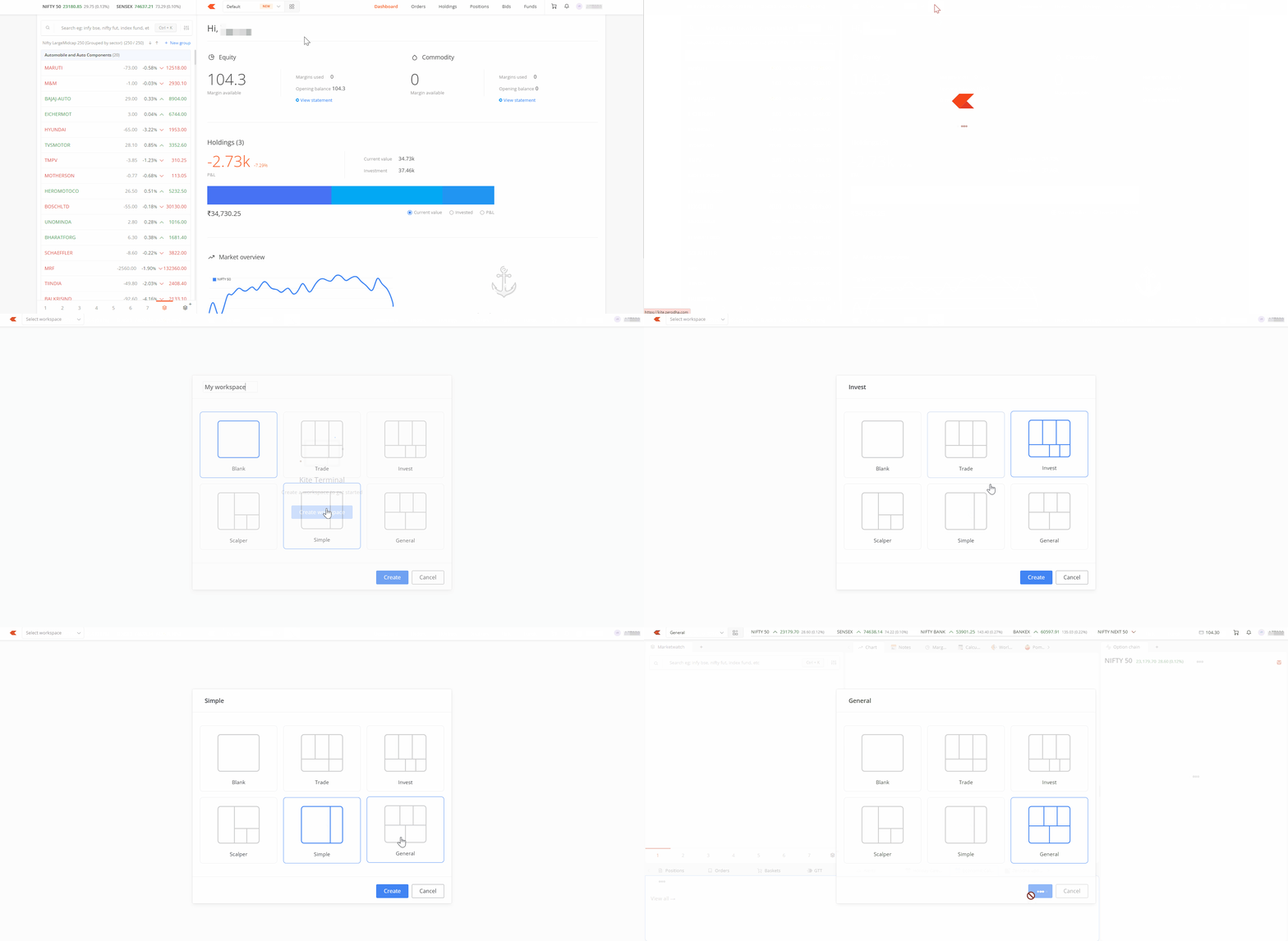
- Blank: Start from scratch with no preset widgets.
- Trade: A balanced layout for active traders.
- Invest: Suited for investors tracking holdings and portfolios.
- Scalper: Designed for speed, with charts, option chain, and order placement linked by default.
- Simple: A minimal, uncluttered workspace.
- General: A mixed-use layout with market news, updates, and games.
These are starting templates. You can customise any layout after creating it.
The top bar
A ticker runs across the top of every workspace, showing major indices like Nifty, Sensex, and Bank Nifty. Hover over the ticker and click the settings icon to add or remove instruments, such as a sectoral index you are tracking.
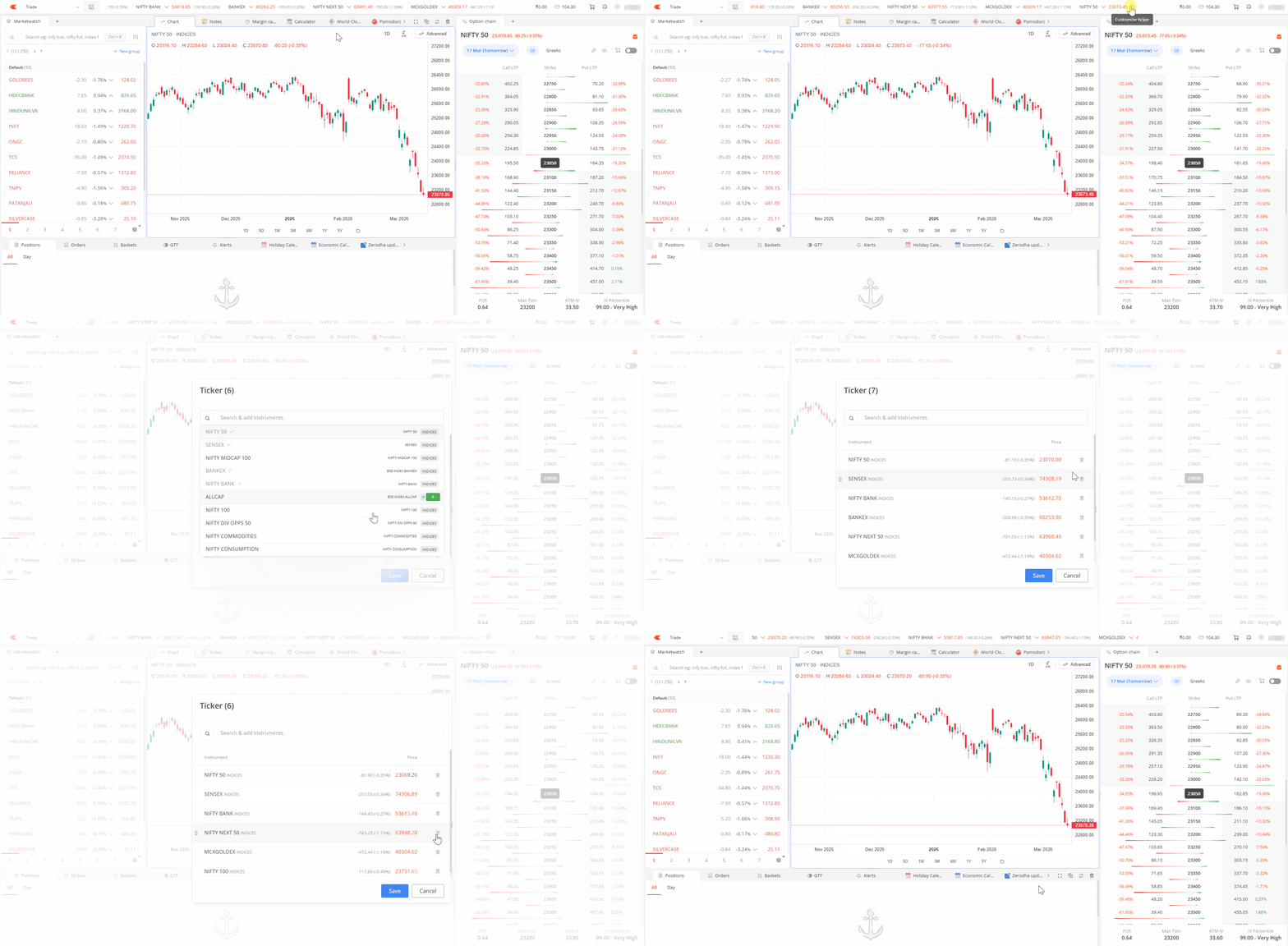
The top bar also shows your profit and loss (P&L), available funds, quick basket icon, and notifications. You can exit positions or add funds by clicking on P&L or Funds. To customise what appears in the top bar, click on the workspace icon and then Settings. The top bar stays consistent across all your workspaces.
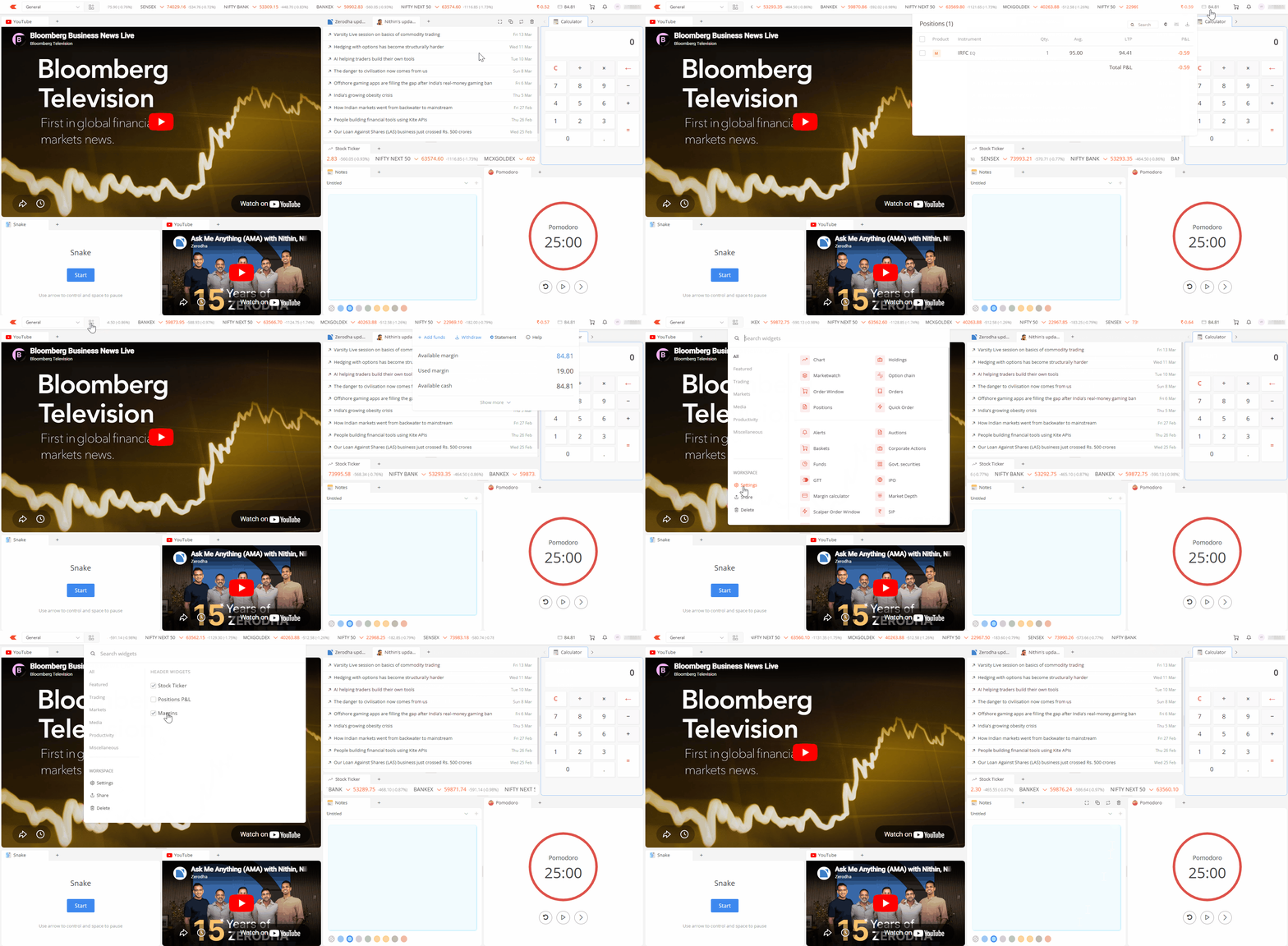
How panels and widgets work
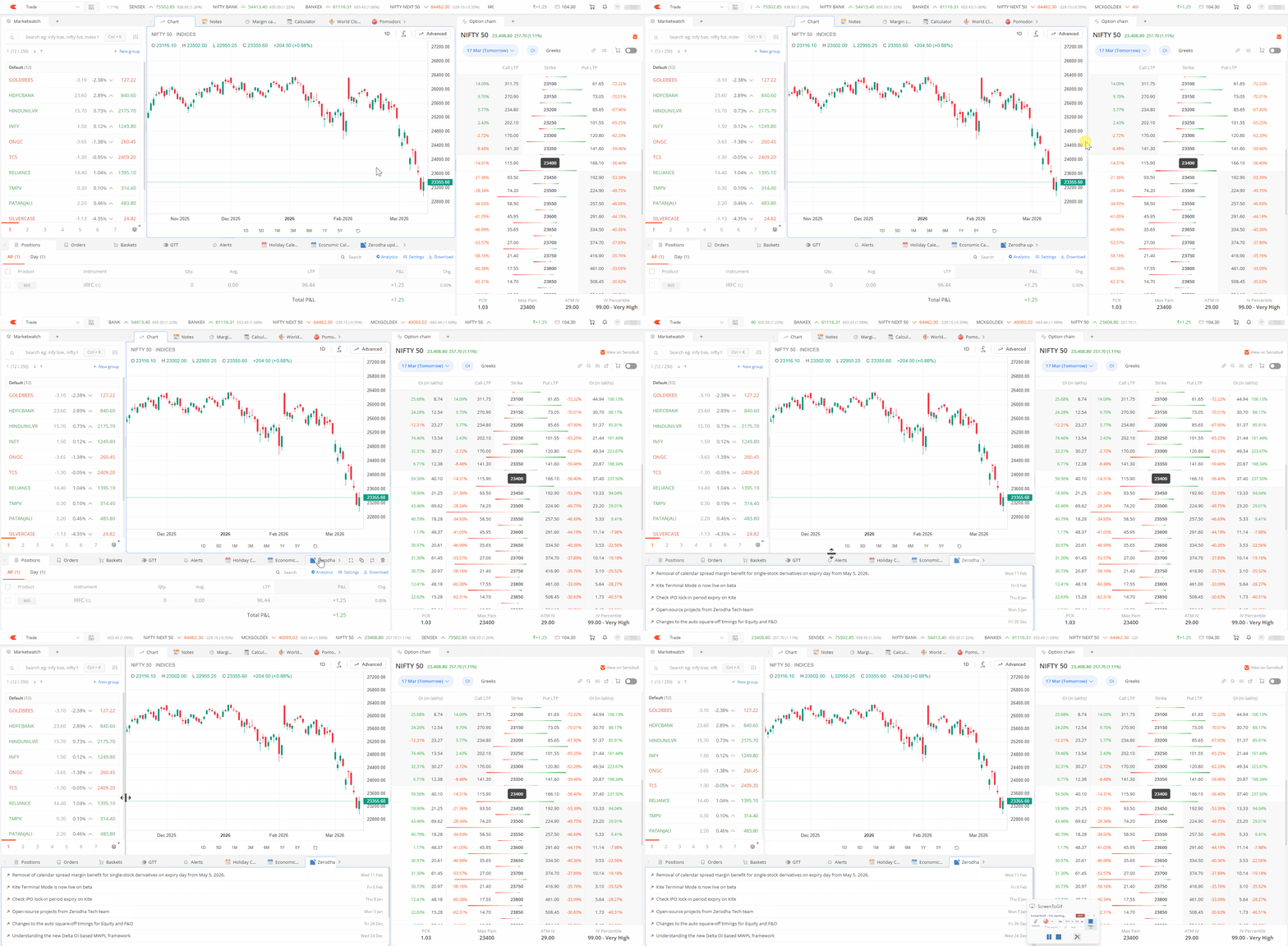
Your workspace consists of panels. Add new widgets to any panel by clicking the + icon.
Each panel comes with four controls at the top:
- Maximise: Expand it to full view
- Clone tab: Opens a duplicate widget in the same panel
- Drag: Swap its position with another panel
- Delete pane: Removes the panel entirely, along with all the widgets in it
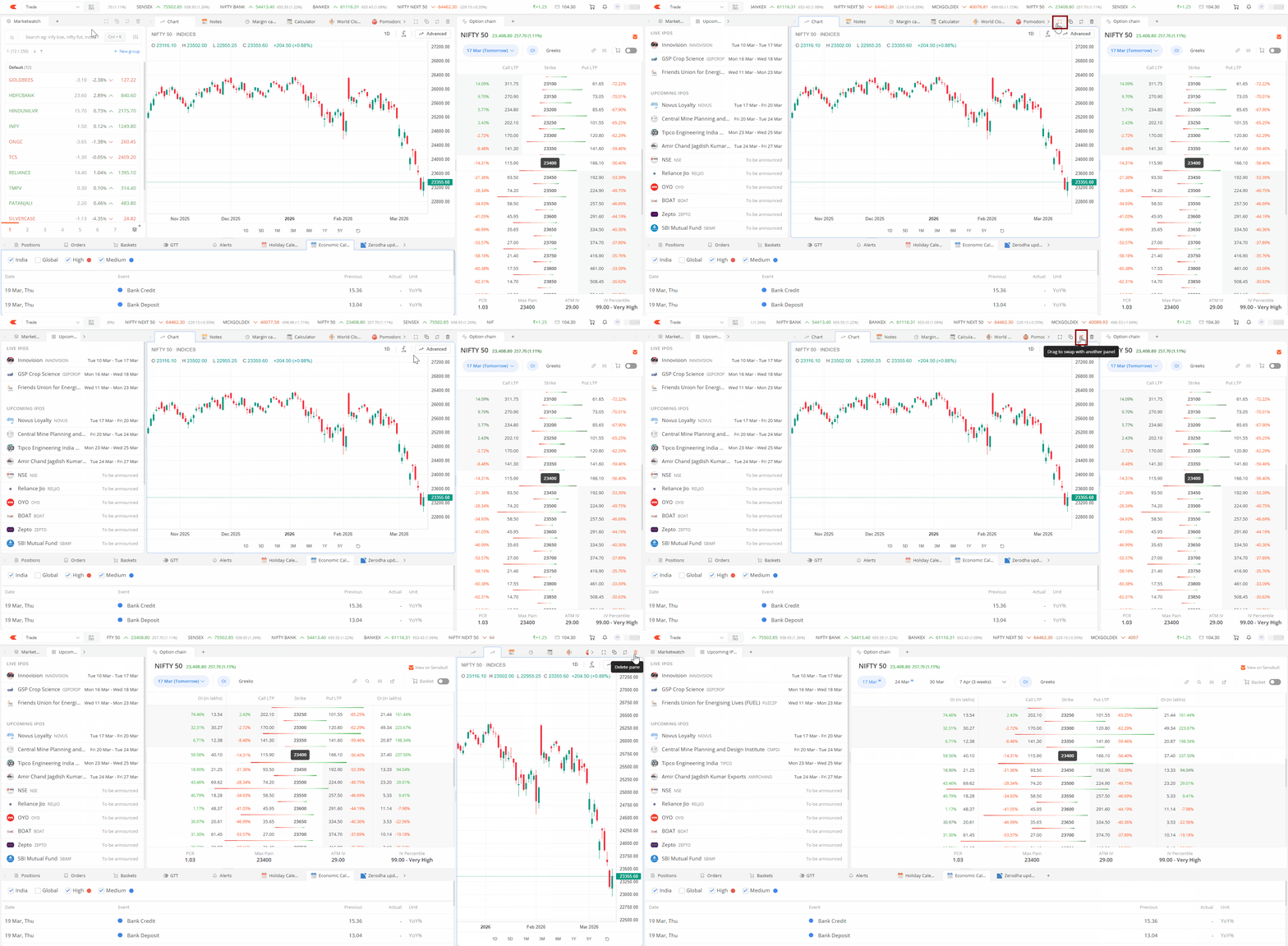
You can also resize any panel by dragging its edges to fit your layout.
Widget overview
Below is a summary of all available widgets in Terminal mode.
| Widget | What it does |
|---|---|
| Market watch | Track instruments you are actively trading or monitoring. |
| Chart | View price charts. Type while the cursor is on the chart to search for an instrument, or click the search icon. |
| Option chain | View options data for any index or stock. Hover over a strike price and click B or S to place an order. Switch to basket mode to add multiple strikes for strategies like spreads, straddles, or strangles. |
| Order window | Place orders without leaving your current view. |
| Quick order | Faster order placement for volatile market conditions. |
| Positions | View all open positions with real-time P&L. Click on Day to see intraday positions only. You can square off positions directly from here. |
| Orders | Track open and executed orders. Modify or cancel pending orders directly from this widget. |
| Trades | View your tradebook. |
| Baskets | View and manage baskets of orders. Execute a group of trades with a single click. Click on New basket to create one. |
| GTT | Good Till Triggered (GTT) orders remain active for up to 365 days. Useful for setting target prices or stoplosses without monitoring the market continuously. Click on New GTT to create one. |
| Alerts | Create real-time alerts based on price, volume, or percentage changes. You receive a notification when your conditions are met. |
| Holdings | View your delivery holdings with current values, P&L, and net change. |
| Margin calculator | Search for instruments to see the required margin and what will be blocked after execution. Adjust transaction type, quantity, and price to plan trades within your available capital. |
| Brokerage calculator | Calculate brokerage charges , taxes, and total trade costs before placing an order. |
| Notes | Write trading notes or reasoning for your trades, useful as an in-platform trading journal. |
| Calculator | A basic calculator for quick risk-reward, position sizing, or P&L calculations. |
| World clock | Track multiple time zones. Useful when monitoring international markets or commodities tied to overseas sessions. You can switch between analogue and digital display. |
| Pomodoro clock | A time management timer with 25-minute focus intervals and 5-minute breaks. You can customise the intervals from the settings icon. |
| Economic calendar | Powered by IndiaDataHub, this shows important economic data releases and events in India and other major economies. You can set reminders for upcoming events. |
| Holiday calendar | Displays the next trading and settlement holiday, with a full list of trading holidays for the year below. |
| Corporate actions | Shows upcoming dividends, bonuses, splits, rights issues, and buybacks for stocks you hold or track. You can also apply for corporate actions from here. |
| Company updates | Powered by Tijori, this shows press releases, board meeting intimations, and corporate announcements. You can filter by your holdings in the settings. |
| IPO | View or apply for Initial Public Offerings (IPOs). You can also see dates, issue prices, and lot sizes. |
| Upcoming IPOs | Focuses specifically on IPOs scheduled to open soon. |
| SSE | Takes you to the Social Stock Exchange (SSE) IPO section for social enterprises and non-profit organisations. |
| SIP | Track your Systematic Investment Plans (SIPs) in stocks, view upcoming instalments, and manage investments. |
| Government securities | Provides information on government securities, treasury bills, and sovereign gold bonds. |
| Auctions | Shows information about auction sessions for stocks. |
| Market timings | Displays trading hours for equity, derivatives, and commodity segments. |
| Google Calendar | Integrates your Google Calendar to track trading schedules and market events. |
| Zerodha updates | Shows the latest Zerodha blog posts and platform updates, including new features, policy changes, and important circulars. |
| Nithin's updates | Shows posts from Nithin Kamath, Zerodha's founder, on regulatory changes, market insights, and Zerodha updates. |
| Funds | View your available margin, used margin, available cash, and other account finances. You can add or withdraw funds from here. |
| Wallpaper | Drop any image into a panel to personalise your workspace. |
| YouTube | Load any video, such as market commentary, tutorials, or news, while you work. |
| Flying Kite / Snake | Game widgets you can add to your workspace to use during breaks or after market hours. |
Managing workspaces
You can create multiple workspaces for different purposes, such as one for intraday trading and another focused on options. Click on the workspace name to rename it or create a new one.
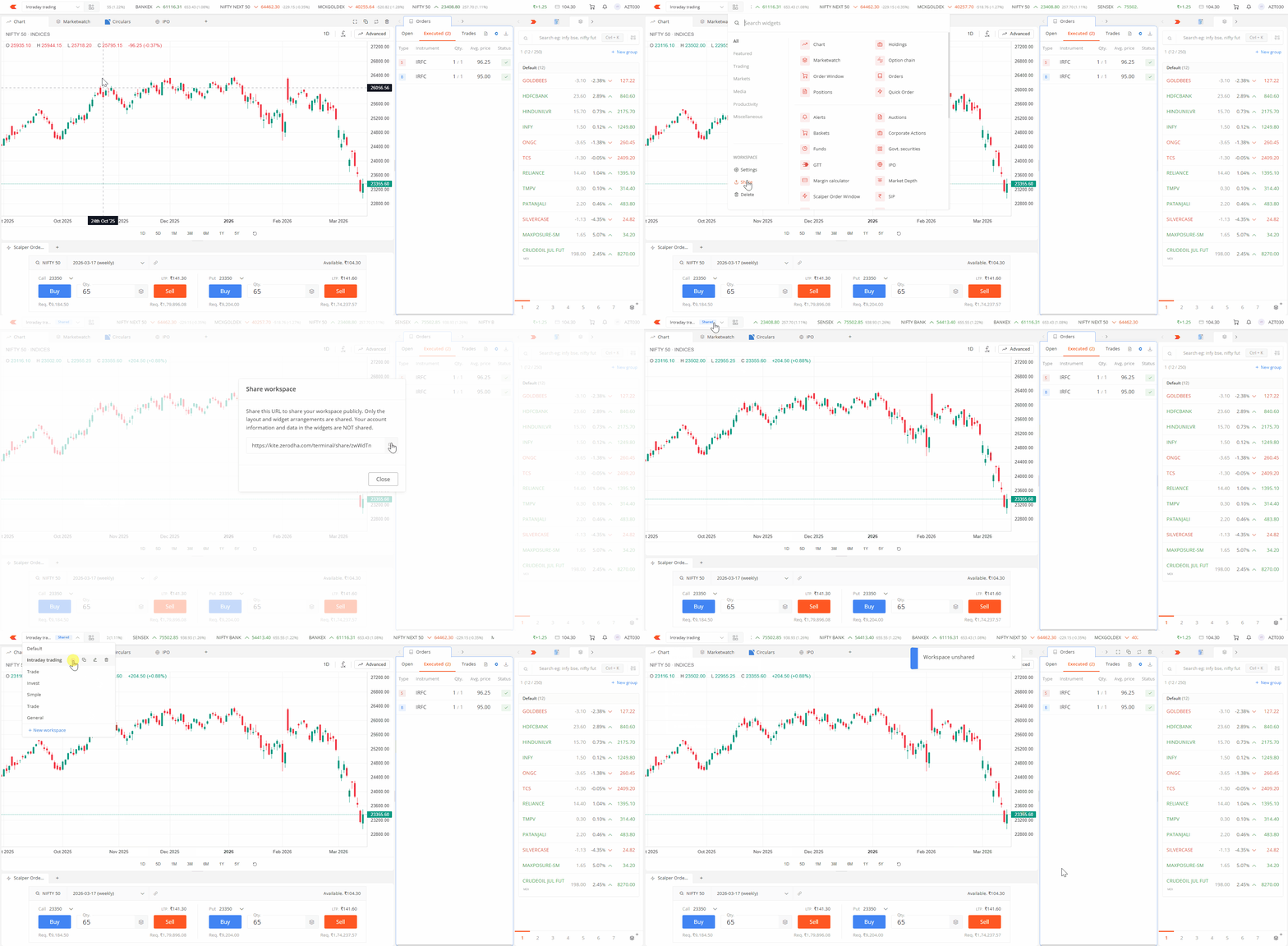
To share a workspace with others, click on Share to generate a shareable link. Click on Unshare to deactivate the link.
Do your Terminal Mode layouts sync with standard Kite web layouts?
No. You cannot sync your layouts between Terminal Mode and standard Kite web. Terminal Mode and your standard Kite web workspace store your layouts and chart preferences completely independently, with no option to sync them. You must set up and save your layouts separately in each workspace.