


You can filter stocks in the Kite screener by market capitalisation, sector, valuation, and other parameters to create your own custom screener, then save it to reload anytime. To skip building filters from scratch, you can start from a ready-made preset instead.
Filters panel
To create your own custom screener, open the Filters panel. On the right edge of the Screener, three icons sit in a row, and the first one opens it.
Start by setting the Stock Universe dropdown at the top. Your options are:
- Nifty 50
- Nifty 100
- Nifty 500
- Nifty F&O Stocks
- All
When you select an option, the results table updates. You can then work through the filters below.
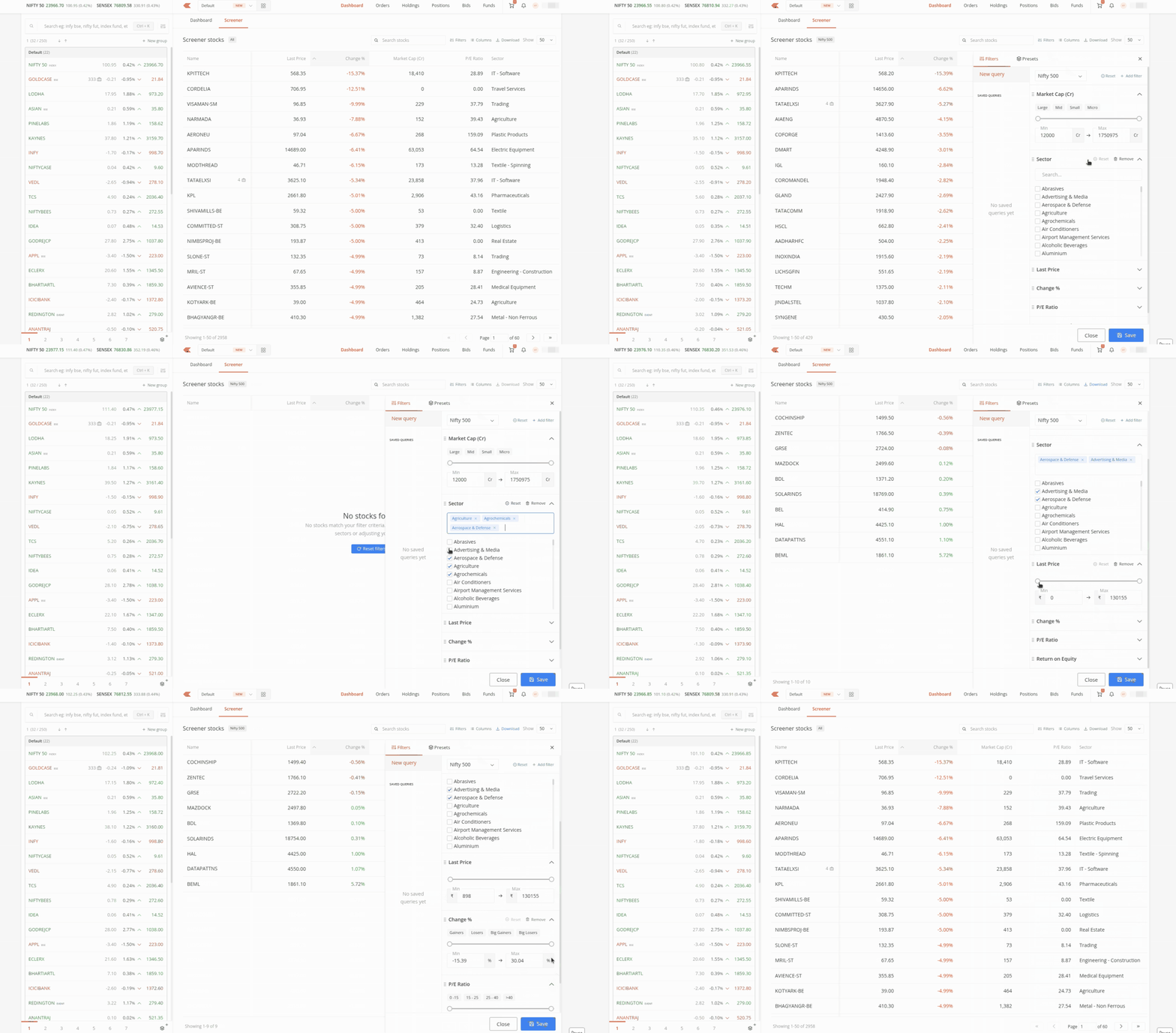
The Market capitalisation in crores filter is expanded by default. It has a range slider with Min and Max inputs, so you can drag the slider handles or type directly into the fields. You can also pick from the quick selection options: Large , Mid , Small , and Micro . A reset icon next to the label clears just this filter without affecting the others.
The Sector filter has a search field and a checklist of every available sector, such as Abrasives, Advertising, and Agriculture. Type in the search field to find a sector faster. You can select multiple sectors at once. Once you make a selection, an X appears next to the Sector label to clear it, or you can uncheck items individually.
Below these, you get Last price, Change percentage, P/E (Price to Earnings) ratio, and Return on Equity, all using the same slider and Min/ Max format. Last price is in rupees. Some of these filters also include quick filter options:
- Change percentage offers Gainers, Losers, Big Gainers, and Big Losers.
- P/E ratio offers predefined ranges: 0-15, 15-25, 25-40, and >40.
- Return on Equity offers selections for <10%, 10-20%, and >20%.
When you select any of these, the table updates instantly.
Each filter comes with its own reset and remove options, so you can change a parameter, reset it to default, or delete that metric entirely. At the top right of the filters box, the main reset button clears all your filters at once. Next to it, the Add Filter button gives you access to extra parameters:
- Dividend Yield
- Debt to Equity
- Free Cash Flow
- Profit Growth year-on-year
- Revenue Growth year-on-year
- Average Price
- Trade Value
- Volume
Select the parameters you need and click on Apply. The table updates instantly, and the new metrics appear in your filters box for further adjustment.
If your combination of filters is too restrictive and no stocks match, the table shows a No Stocks Found message with a button to reset your filters and start fresh.
Saving and reusing your screener
When you build a filter combination you want to reuse, click on the save icon at the bottom right of the filters box. A dialog opens where you enter a name. Click on Save to store it.
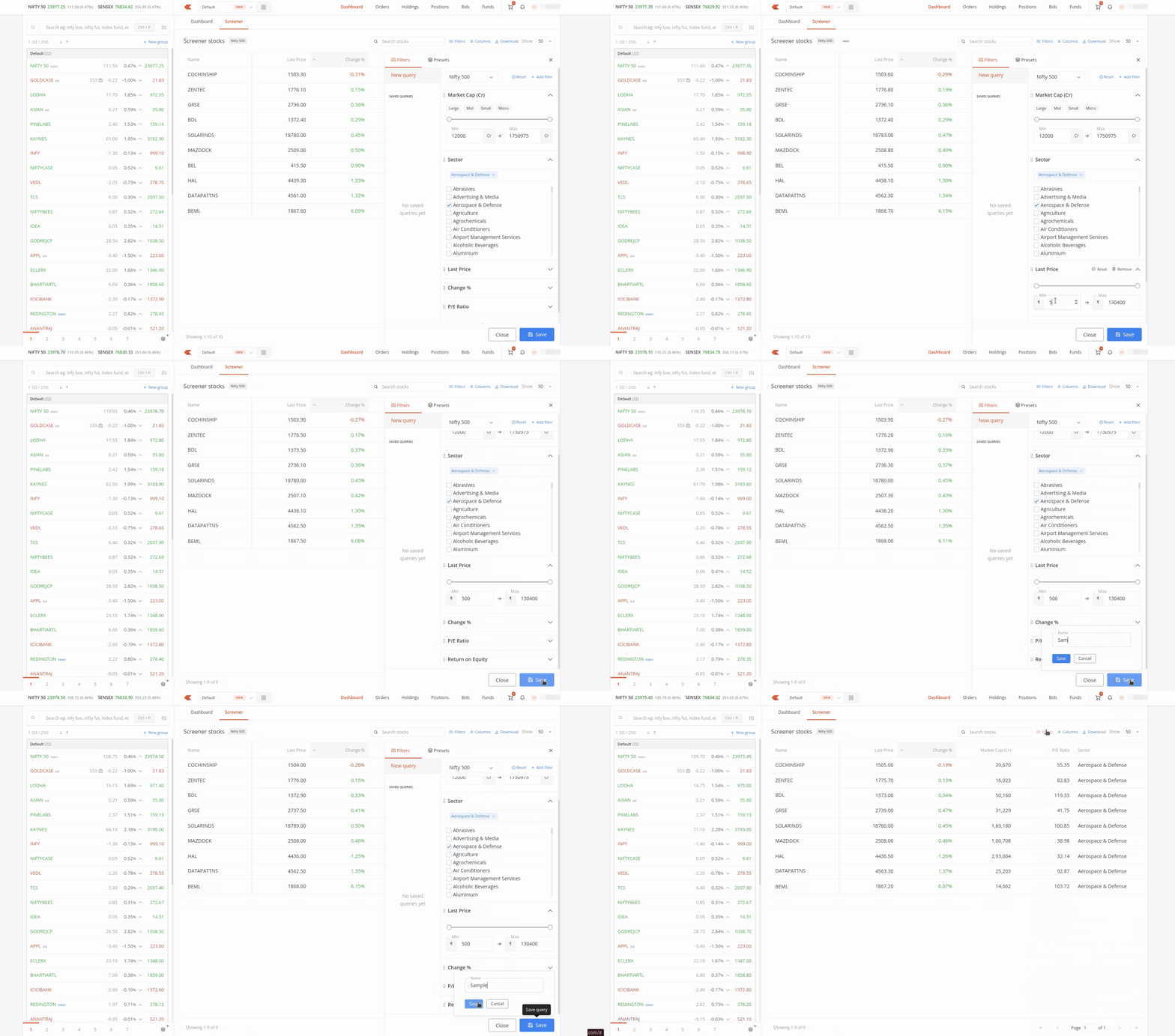
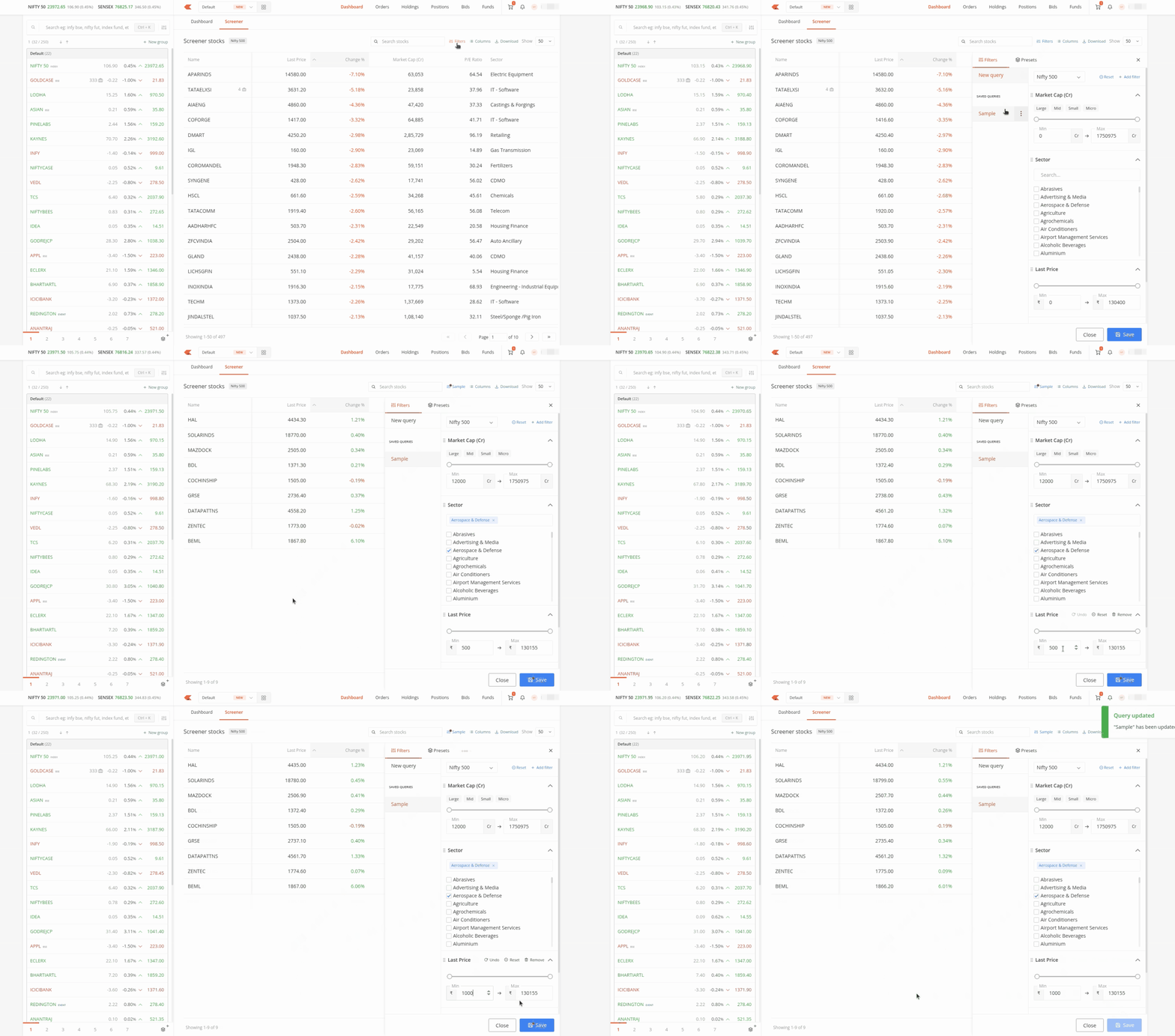
To load a saved screener later, go to the Saved Queries section below the default options in the filters box. If you have not saved anything yet, it shows a No Saved Queries Yet message. Once you save a screener, it appears here, and you can reload it without rebuilding it from scratch.
To update a saved screener, select it and adjust the parameters. A red dot appears on the save button, and you click on it to save your changes.
Preset screeners
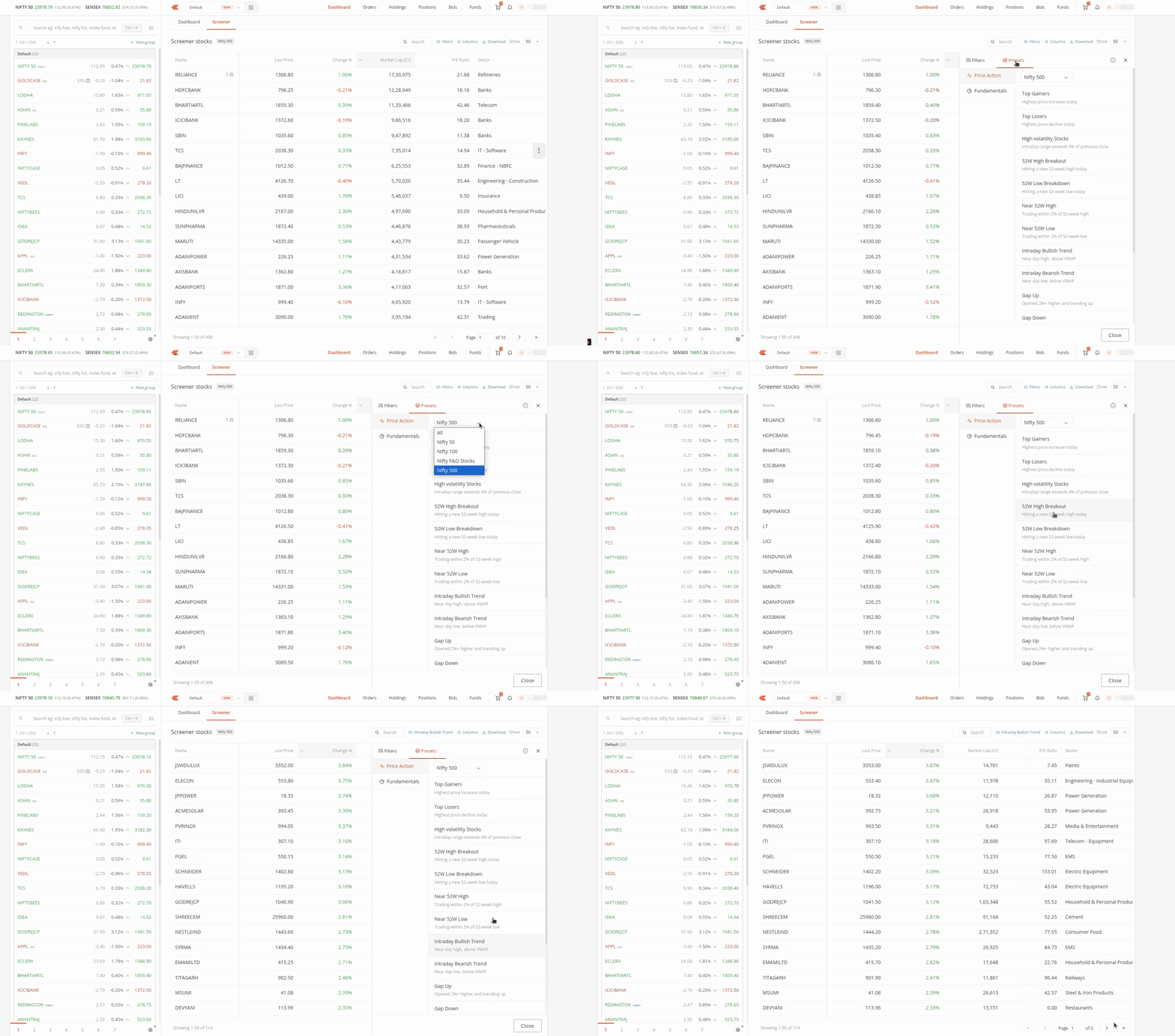
The Screener also includes ready-made preset screeners that you can use straight away. Open them from the Presets option on the right side of the filters box.
Once your filters narrow the list, you can view any stock's details and place an order without leaving the Screener.